Using PrepVault
Quick add a job with a job description
Typing out a job by hand is the slow way. If you have the posting, paste it and PrepVault reads it and fills the role in for you.
Here's what it pulls and when to reach for it.
Paste it instead of typing it
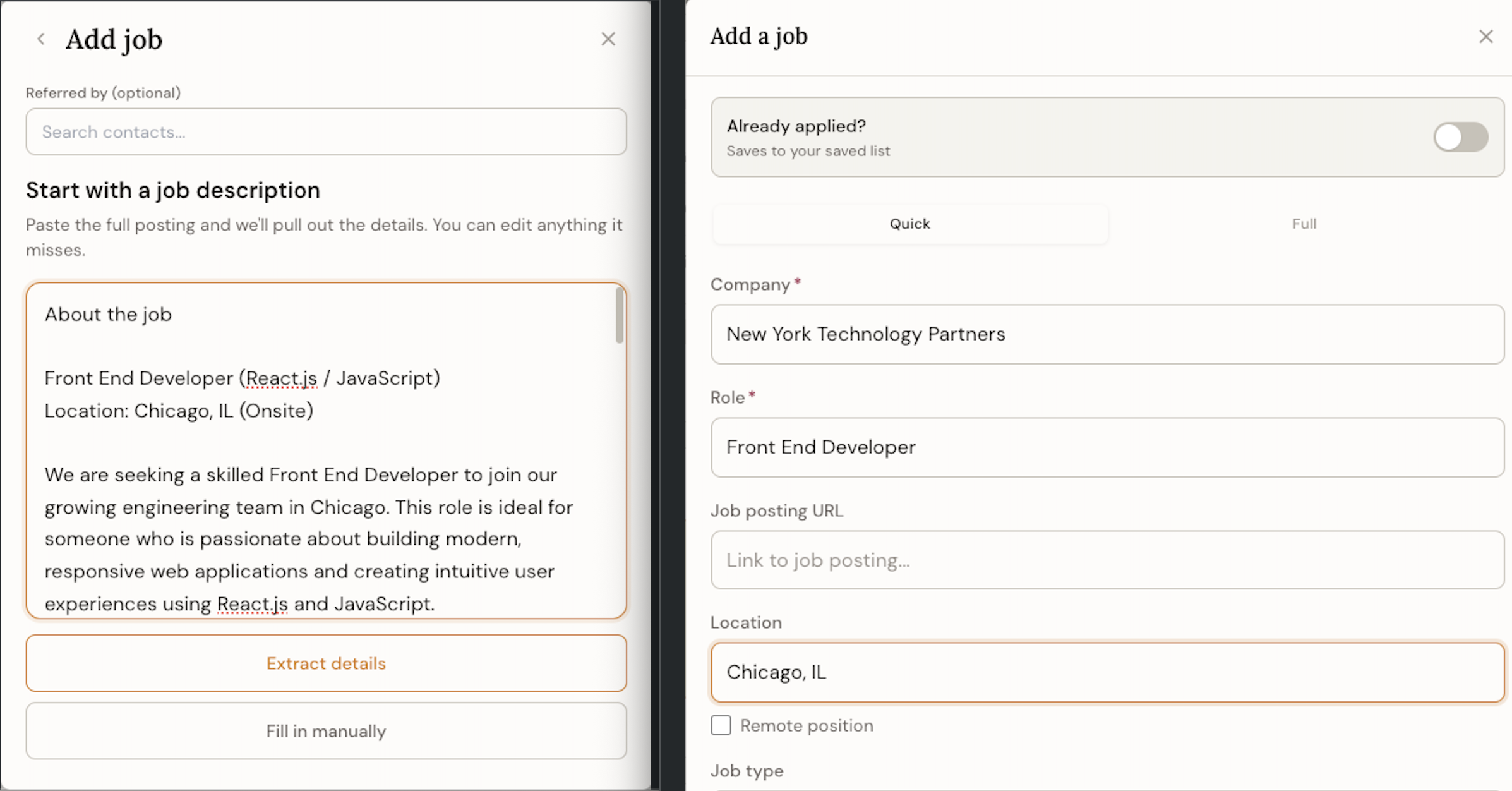
Hit the plus button, choose to add a job, and drop the full posting into the description field. PrepVault reads it and fills in the title, the company, the location, and the skills the role calls for. You're not retyping any of it.
Paste the whole posting, not a trimmed version. The more text it has to read, the better the role analysis that comes later.
What gets pulled out
The parser pulls the job title, the company name, the location and work type when the posting states them, and the skills the role asks for, split into required and preferred where the language makes that clear.
It keeps the full description too, so the role analysis can map your profile against what the posting actually wants.
When to use it
Use this any time you have the posting in front of you. It's the fastest way in, and it's the only way that feeds the role analysis the full text up front.
If a job came from a conversation or a listing that's already gone, you won't have a posting to paste. Add the title and company by hand instead, and paste a description later if you find one. There's a separate guide on the three ways to add a job.
You can change anything after
Nothing the parser fills in is locked. If it grabbed the wrong title, tagged a skill that isn't really there, or read the salary wrong, edit it. Your edits become the record, and the next prep brief reads from them.
So a quick fix to a parsed field isn't busywork. It sharpens everything that builds on the role later.
Quick reference
- Fastest add
- Plus button, add a job, paste the full posting
- What it pulls
- Title, company, location, required and preferred skills
- Paste the whole thing
- The full text feeds a better role analysis
- Editable
- Change any field after. Your edits feed the next brief.