Using PrepVault
How to add a job: three ways
There are three ways to get a job into PrepVault. They all land in the same place. Pick whichever matches what you've got in front of you.
Paste the job description
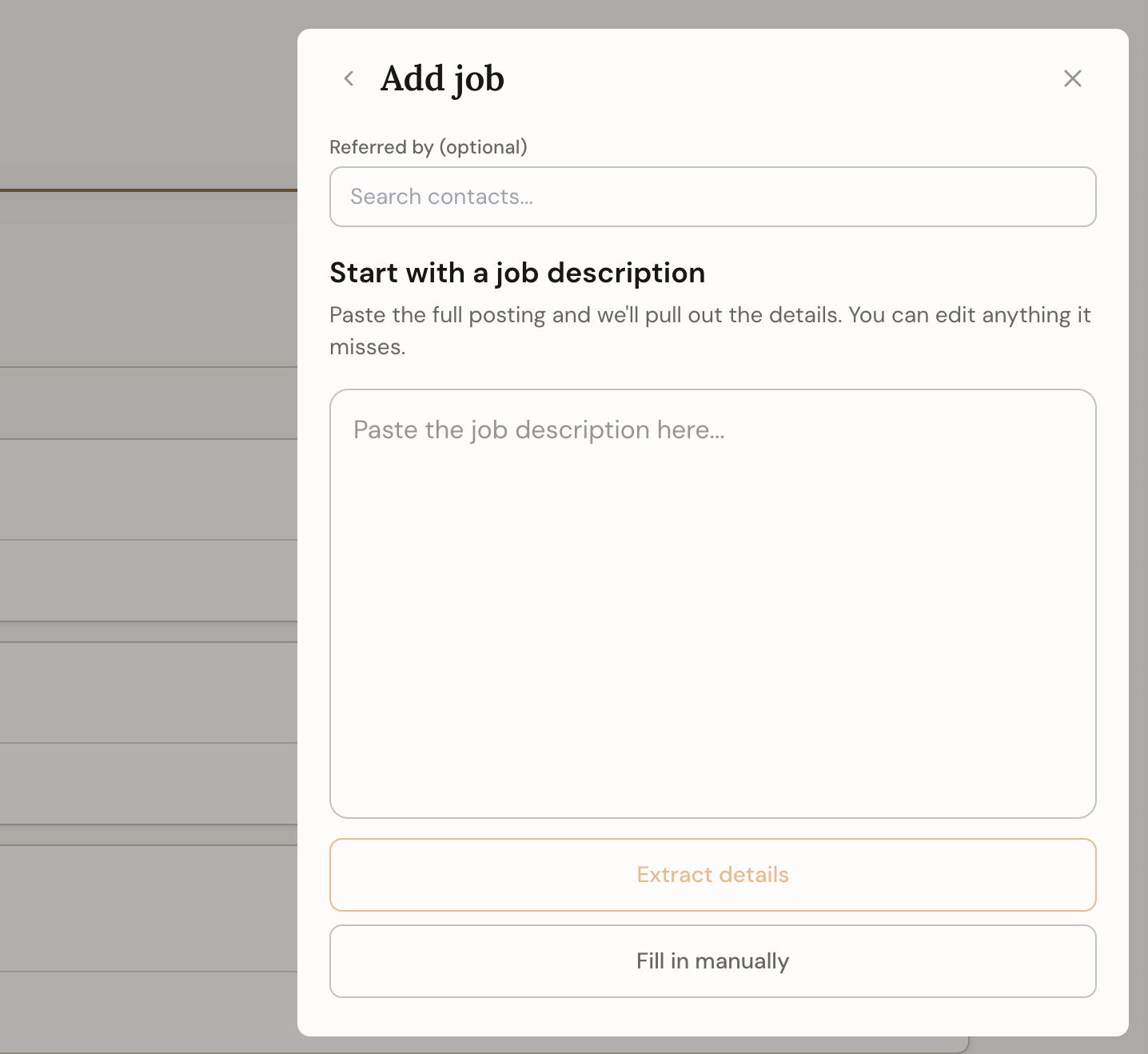
This is the fastest one. Copy the posting, hit the plus button, choose to add a job, and paste it in. PrepVault reads it and fills in the title, company, and the skills the role calls for, so you're not retyping any of it.
Paste the whole thing, not a trimmed version. The more it has to read, the better the role analysis that comes later.
Enter it by hand
No posting to paste? Add the title and company yourself and fill in what you know. This is the one to use when a job came from a conversation, a referral, or a listing that's already gone.
You can paste a description in later. The role analysis will pick it up when you do.
Start from a recruiter message
When a recruiter reaches out first, use the Recruiter reached out action instead. It captures who contacted you and what for, and links the recruiter to the role so you don't lose the thread. There's a separate guide that walks through it.
What happens after
However you added it, the job gets its own space with notes, contacts, research, and prep. The prep tools are open from the moment it lands, whatever stage it's at.